Thursday, March 14, 2013

PHT3D

GMS 9.1 will support PHT3D.

PHT3D is a multicomponent transport model for three-dimensional reactive transport in saturated porous media developed and maintained by Henning Prommer and Vicent Post. PHT3D is a combination of MT3DMS and PHREEQC-2. The PHREEQC allows for a variety of low temperature aqueous geochemical reactions.

GMS will support PHT3D as an add-on to the MT3DMS interface. In addition to the samples that come with the PHT3D documentation, users can create their own geochemical reactions and use the GMS interface to set up their model. GMS can parse the PHREEQC database file, so any valid PHREEQC database can be used to set up a model. Below are a few screen shots from the interface.

MT3D Basic Package dialog allows selection of PHT3D as transport  model
After selecting PHT3D as the transport model the user can select the Define Species button and the following dialog will come up.

PHT3D Options dialog
From this dialog the user can set basic PHT3D options. By selecting from the list on the left of the dialog the user can enter various options for the different types of species that are included in the model.

PHT3D Options dialog with no database file selected
Notice at the top of the dialog the user can choose to select a PHREEQC database file. The species are partially defined by the contents of the PHREEQC database file. GMS reads the PHREEQC database and makes the species contained therein available to the user. The user can also select a PHREEQC-2 interface package file. When an interface package file is chosen GMS assumes that the PHREEQC database file is in the same directory with the name pht3d_datab.dat. The images below show some of the options for entering data related to the species.
Equlibrium Species
Kinetic Species
Equilibrium Minerals


Monday, March 4, 2013

Zoom to Selections, Locate Selections

Two new commands were added at GMS 9.0: Edit | Locate Selections and Display | Zoom To Selections.

Locate Selections
The Locate Selections command is in the Edit menu and results in an animated rectangle which starts from the borders of the graphics window and zooms in to surround whatever is currently selected (grid cells, boreholes etc). This helps you identify where your selections are.

Zoom To Selections
The Zoom To Selections command is in the Display menu and causes the graphics window to be framed around the currently selected objects (grid cells etc).

These commands can make working with large amounts of data a little easier.


February 2013 Sprint

Thursday, February 14, 2013

Advanced GMS Training, Cairo, Egypt

Dar Al-Handasah hosted an Advanced GMS Training Course from February 6-12, 2013.


The class comprised 6 full days of training. A broad range of subjects were covered including: creating MODFLOW models by directly editing 3D Grid, MODFLOW conceptual models, GIS data integration with groundwater models, subsurface modeling, model calibration, PEST, Parallel PEST, SVD-Assist, MODPATH, Transport Modeling with MT3DMS, Stochastic simulations using parameter distributions, Stochastic simulations using TPROGS material sets, Stochastic simulations using PEST Null Space Monte Carlo, SEAWAT, and MODFLOW-CFP. Most of the time in the training was passed using GMS to solve case study problems. Many of the case studies were based on Woburn, MA (the subject of the book and film A Civil Action). Groundwater data for Woburn can be found here.


The students really appreciated all of the time spent practicing using GMS to solve a variety of groundwater problems. They especially appreciated how powerful, intuitive, and easy GMS was to work with. By the end of the first day the students were able to create MODFLOW models with almost no help from the instructor.


Aquaveo wishes to express many thanks to Dr. Abdel-Rahman Abdel-Raouf of Dar Al-Handasah for helping to organize the class.

Friday, February 1, 2013

On-the-fly projection

On-the-fly projection is one of the many new features in GMS 9.0. On-the-fly projection means that individual objects (coverages, grids, images etc) can define their own projection. If they do, they will be reprojected to a common display projection when drawn. Thus, if you have data defined in different coordinate systems (state plane, UTM etc) you can now import that data as is and it will all be drawn in the right place. The only necessity is that a .prj file accompanies the data or that you specify the projection in GMS after importing.

Objects don't have to define their own projection. If they don't, GMS assumes the object's projection is the same as the display projection and just draws it using the object coordinates without performing any reprojection.

There are a few rules with on-the-fly projection. If an object's projection doesn't match the display projection it cannot be edited. You can, however, change the display projection to match the object's projection, edit the object, and then change the display projection back if you like.

Another rule is that if a grid (2D or 3D) defines it's own projection, the display projection must match the grid projection. GMS will force them to match. Furthermore, all grid objects (2D, 3D and the grid frame) must either define no projection, or all define the same projection.

GUI changes

A number of changes in the GUI were made to support the new projection functionality.

The Projection command was moved from the Edit menu to the Display menu and renamed Display Projection.

The status bar was changed to show the current display projection as well as the latitude and longitude whenever the display projection is a global projection:

Status bar showing lat/lon and current display projection.

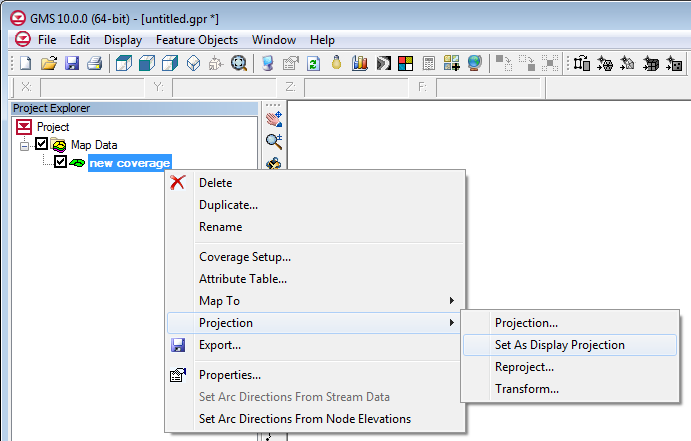
A standard "Projection" sub-menu was added to the right-click menu of every object. This menu has commands to set the object's projection, set the display projection to match the object's projection, reproject the object, and transform the object.

Standard Projection sub-menu added to all objects.
The projection dialog was modified so that it now says "No projection" instead of "Local projection". The difference is subtle, but we felt the new verbage was more accurate.

New Projection dialog.

Thursday, January 31, 2013

January 2013 Sprint

  • Fixed 8 bugs
  • MODFLOW-LGR progress
  • PHT3D progress
  • MODFLOW-USG progress
  • Start of test coverage analysis

Thursday, January 3, 2013

December 2012 Sprint

  • Added some new images to the Image Gallery
  • Released GMS 9.0 out of beta
  • Fixed some raster legend issues
  • Progress on MODFLOW-LGR
  • Progress on PHT3D
  • Progress on unstructured grids